

If your sales team still sees a Salesforce side panel in the desktop version of Outlook, or relies on contacts and meetings syncing quietly in the background, the clock is now running. The Salesforce for Outlook retirement has been brought forward: the add-in is scheduled to stop working on January 30, 2027, not December 2027 as many teams had planned. This guide explains what changes, who is affected, which replacement to choose, and the exact steps to migrate before the deadline.
What the Salesforce for Outlook retirement changes
Salesforce for Outlook is the older Windows add-in that syncs contacts, events and tasks between Outlook and Salesforce and adds a Salesforce side panel to emails. According to the official Salesforce for Outlook Retirement knowledge article, updated on October 1, 2026, the product has been rescheduled to retire on January 30, 2027. The Winter '27 release notes and the Salesforce list of active product and feature retirements give the same date.
From that date:
- Salesforce for Outlook no longer syncs contacts, events or tasks.
- Users lose the side panel, the Add Emails button and the other add-in features.
- Admins lose access to Outlook configurations in Setup.
- Data that was already synced between Outlook and Salesforce stays where it is.
One practical warning: a few older Salesforce Help pages still show earlier or later dates. Plan against January 30, 2027, the date on the knowledge article and the retirement list.
The same retirement list contains two related changes worth noting. Lightning Sync retires on April 1, 2027, and several Einstein Activity Capture extras (activity metrics, the activity dashboard, recommended connections and the related reports) are scheduled to retire with Spring '27 in February 2027. Do not design your new setup around those features.
Who is affected
- Sales reps on Windows desktop Outlook: anyone who logs emails with the side panel or the Add Emails button, or who counts on automatic contact and calendar sync.
- Admins: you own the inventory, the Outlook configurations, and the move to the new products.
- IT and Microsoft 365 teams: the replacements connect to Exchange at server level, and users on Outlook 2010 or Exchange 2010 are not supported by the next-generation products.
- Sales managers: if your pipeline reviews depend on activity history, expect gaps if nothing is done before the deadline.
- Smaller editions: Salesforce for Outlook ran on Contact Manager and Personal editions, but the replacements do not. Check your edition first.
The replacements: Outlook integration and Einstein Activity Capture
Salesforce recommends two "next-generation" products. They split the old add-in's job in two.
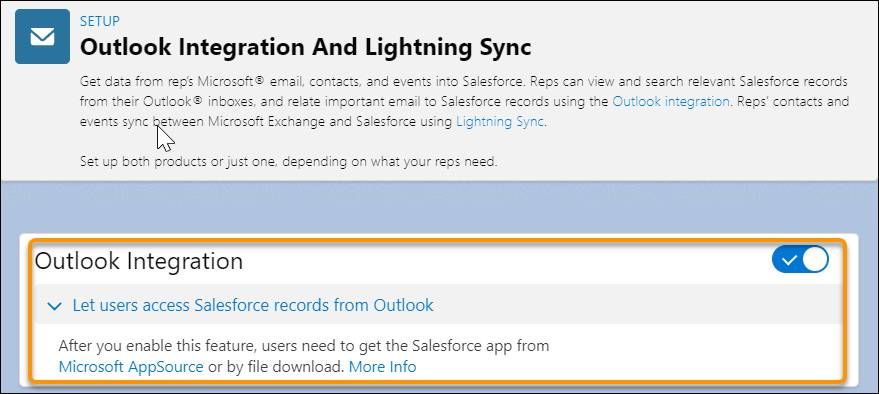
Outlook integration replaces the side panel. Reps see Salesforce records next to their emails and events, create records, search Salesforce, and log emails and events to records without leaving Outlook. Admins can build custom panes with Lightning App Builder and assign them to groups of users. It is available in Essentials, Group, Professional, Enterprise, Performance, Unlimited and Developer editions.
Einstein Activity Capture replaces the background sync. It keeps contacts and events in sync and adds emails and events automatically to the activity timeline of related accounts, contacts and opportunities. It is available in Essentials, Professional, Enterprise, Performance and Unlimited editions.
The official comparison of Salesforce for Outlook with the next-generation products lists the differences that matter most in practice:
- Tasks are not synced. The Outlook integration shows Salesforce tasks in the side panel, but neither product syncs tasks with Outlook.
- Custom fields do not sync. Only standard field mappings are supported.
- Deletions are not mirrored. Deleting a contact in one application no longer removes it from the other.
- Sync direction is set by the admin. Reps cannot adjust it themselves.
- Captured emails stay on the timeline. Einstein Activity Capture adds emails and events to the activity timeline without creating new records, which changes how you report on activity.
How to prepare the migration
Salesforce Help describes the preparation in its page Prepare for Salesforce for Outlook Retirement. The essentials:
- Find your real users. In Setup, export the Salesforce for Outlook login history for the last six months and compare it with the users assigned to Outlook configurations. Many orgs discover far fewer active users than licences, or the reverse.
- Document every configuration. Record enabled features, user and profile assignments, data sets, field mappings and sync filters, with the migration worksheets or full screenshots. Names alone are not enough: mappings and filters do not transfer automatically and must be recreated.
- Tell reps to keep their Outlook categories. The "Sync with Salesforce" and "Don't Sync with Salesforce" categories must stay on contacts and events, even after uninstalling the add-in. Removing them can create duplicates later.
- Confirm sync folders. Ask reps which Outlook folder they sync. Users on the default folder have nothing to change.
- Decide what replaces task sync. Agree with sales managers where follow-ups will live: Salesforce tasks seen from the Outlook side panel, or Outlook only.
- Check prerequisites. Edition, licences, Outlook and Exchange versions. Einstein Activity Capture supports Exchange Online with Office 365 and recent on-premises Exchange versions; hybrid Exchange setups support capture only.

A migration like this is also the right moment to clean contact data before sync starts again. Our guide to Salesforce duplicate rules explains how to stop duplicates being recreated, and our CRM migration team can run the inventory with you.
What to do now: a step-by-step plan before January 30, 2027
The Trailhead unit Set Up the Outlook Integration and Einstein Activity Capture walks through the setup screens. A realistic plan for the next three months:
- This week: confirm the retirement date with your team, run the login history export and list affected users.
- In November: document configurations and decide, per team, whether you need the Outlook integration, Einstein Activity Capture, or both.
- Turn on the Outlook integration in a sandbox or for a pilot. In Setup, search for "Outlook" in Quick Find, open Outlook Integration and Sync, switch on the integration and keep Enhanced Email enabled so logged emails are stored as email records.
- Set up Einstein Activity Capture for the pilot. Assign the permission set, open Einstein Activity Capture Settings and follow the guided flow to connect to the Microsoft server, create a configuration and assign users. If you still use Lightning Sync, turn it off first.
- Disable Salesforce for Outlook for the pilot users so both tools never sync the same calendar at once, then test logging, contact sync and event sync for two weeks.
- In December: roll out to production team by team, with a short guide for reps.
- Before January 30, 2027: uninstall the Salesforce for Outlook client from every machine and close the Outlook configurations.
Before and after, in short:
- Before: a Windows add-in installed and upgraded by hand on each PC, task and custom field sync, settings that differ from machine to machine.
- After: a side panel managed centrally from Setup, automatic email and event capture on the timeline, updates delivered with each Salesforce release, and tasks handled in Salesforce.
If you are also replacing password-based integrations this winter, our article on Salesforce integration authentication deadlines covers the other dates to keep in your plan.
Conclusion
The Salesforce for Outlook retirement is not a cosmetic change: from January 30, 2027, the old add-in stops syncing and the side panel disappears. Teams that start in November have enough time to inventory users, document configurations, pilot the Outlook integration and Einstein Activity Capture, and roll out calmly. Teams that wait will discover the gap through missing meetings and emails in the CRM. If you want a structured plan for your org, our Salesforce Sales Cloud consultants can audit your current Outlook setup and run the migration with your IT team.