

Most Salesforce orgs have validation rules. Fewer have validation rules that people actually like. When rules are written in a hurry, users hit vague errors, imports fail at 2 a.m., and admins end up switching rules off "just for today". This guide collects practical Salesforce validation rules tips you can apply this afternoon: how to write the formula, how to word the error, how to stop rules firing on old data, and how to give a controlled bypass for data loads.
How Salesforce validation rules work (and the one mental shift)
A validation rule checks a record when someone saves it. If the record breaks your business rule, the save is blocked and the user sees an error message asking them to fix the data. Salesforce's own introduction to validation rules on Trailhead lists three classic uses: data format (length, range, pattern), business process (what must be filled at each stage) and compliance.
The mental shift is this: the error condition formula describes the bad data, not the good data. When the formula returns TRUE, the error appears. You never need to wrap it in IF(condition, TRUE, FALSE); the condition already returns TRUE or FALSE.
To create one:
- From Setup, open Object Manager and choose the object (for example Account).
- In the left sidebar, click Validation Rules, then New.
- Enter a rule name and a description that explains the business reason.
- Write the error condition formula. Use Insert Field rather than typing field names: formulas use API names (Opportunity Stage is
StageName), and guessed names are the most common cause of syntax errors. - Write the error message and choose the error location.
- Click Check Syntax, then Save, and make sure the rule is active.
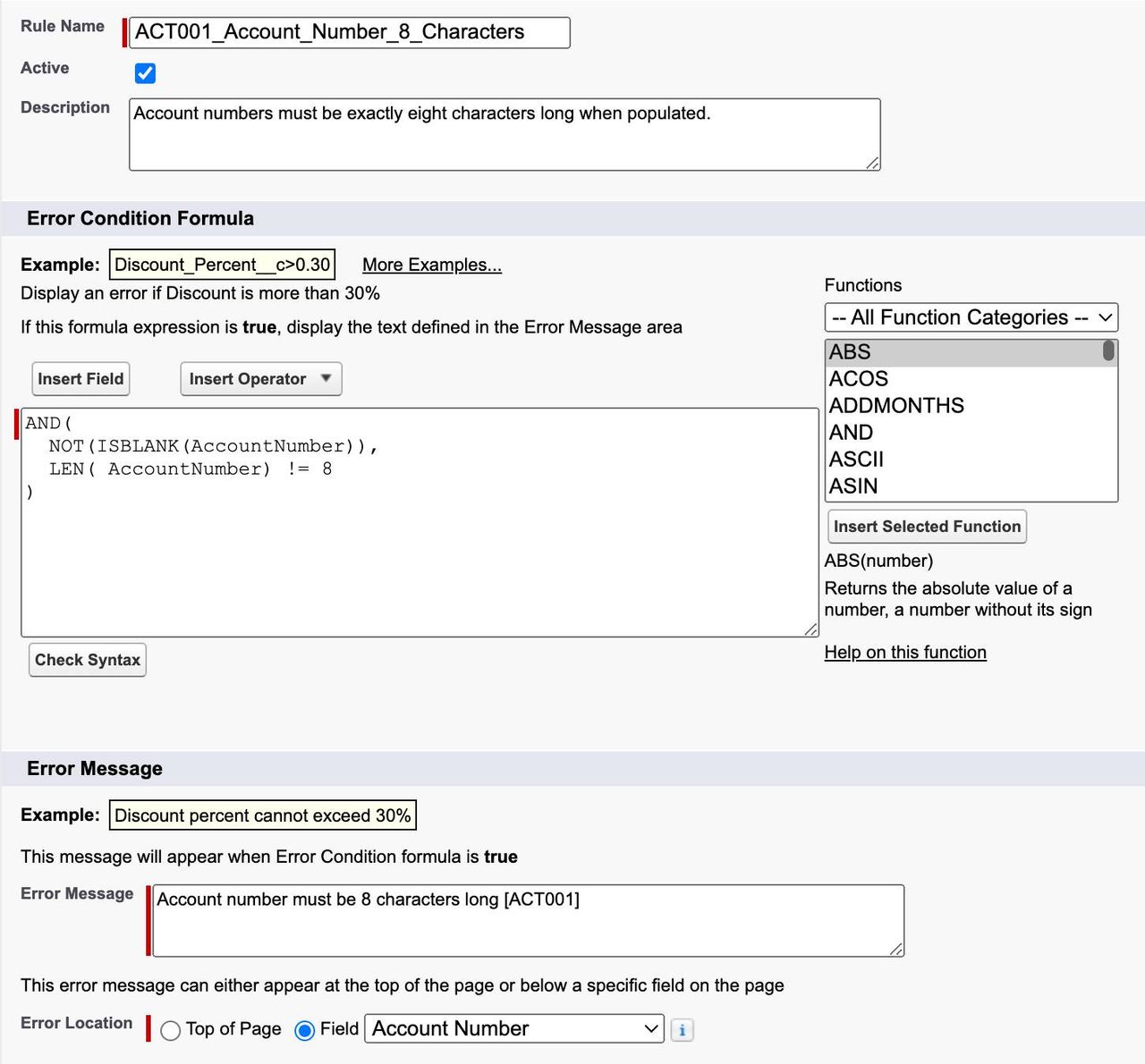
A simple example from Trailhead: an Account Number, when filled in, must be exactly eight characters. The formula is AND(NOT(ISBLANK(AccountNumber)), LEN(AccountNumber) != 8). Read it as "the field is not empty AND its length is not 8": that is the bad case.
Tip 1: Write errors users can fix on their own
An error message is user interface copy. Treat it that way. Salesforce's validation rule best practices module recommends three habits that pay off quickly:
- Say what triggered the rule and how to fix it. "Amount is required from the Qualification stage. Enter an amount or move the opportunity back a stage" beats "Invalid data".
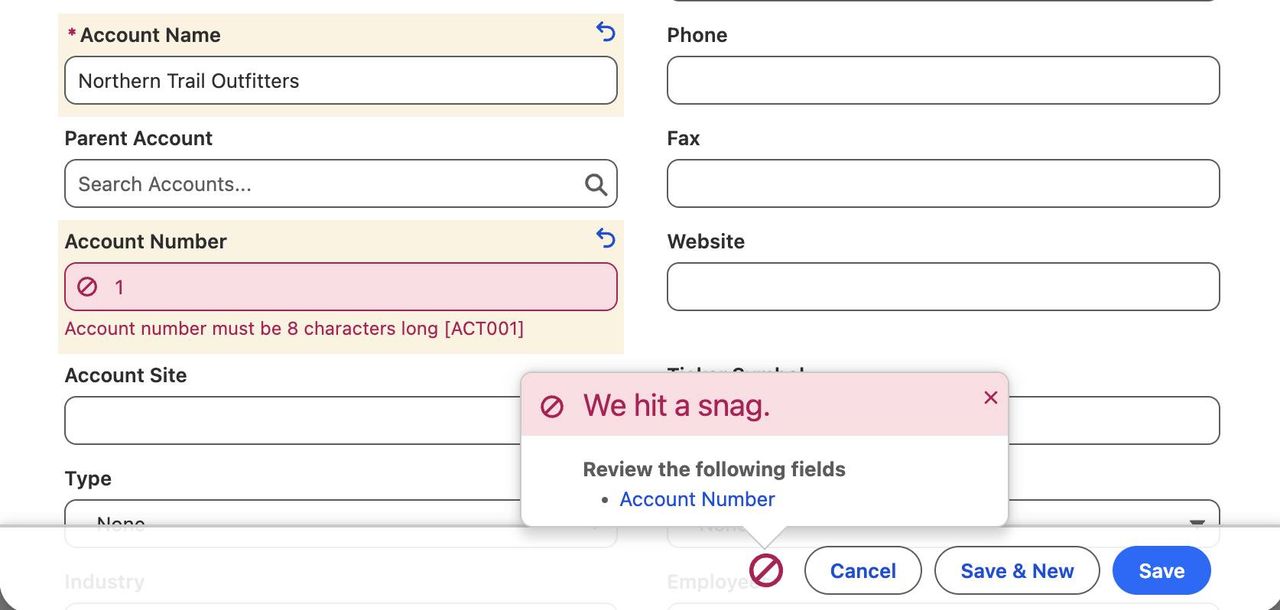
- Add a unique error code to every message, with a prefix per object (OPP001, OPP002, LEAD001…). When a user sends a screenshot, or when a flow fails because of a rule on a related record, the code takes you to the right rule in seconds.
- Show the error on the field whenever you can. Salesforce then links the user straight to the field that needs correcting. Keep the top-of-page location for rules that involve several fields.
One more rule of thumb from the same module: one scenario per rule. If an opportunity needs both an Amount and Next Steps at a given stage, build two rules. Each formula stays readable, each error appears on its own field, and you can switch one off without touching the other.
Tip 2: Stop rules firing on old records
The classic complaint goes like this: a user edits the phone number on a three-year-old opportunity and gets blocked because the close date is in the past. The rule is correct for new data, but it punishes people for history they did not create.
The fix is to make the rule react only to relevant changes, using three functions:
ISNEW()returns TRUE when the record is being created.ISCHANGED(field)returns TRUE when that field's value changed in this save. It does not detect values on creation, so pair it withISNEW().PRIORVALUE(field)returns the value before the change. Use it to lock a field once it reached a given state, for example to stop edits after an opportunity was Closed Won.
Trailhead's example rule for close dates combines them: block the save only if the record is new or the Close Date changed, and the new date is earlier than TODAY(). Before and after, in plain terms:
Before (rule without change detection):
- Any edit on an opportunity with a past close date is blocked.
- Users call the admin, or the rule gets deactivated.
After (rule with ISNEW() or ISCHANGED(CloseDate)):
- New opportunities cannot be created with a past close date.
- Moving an existing close date into the past is blocked.
- Editing other fields on old opportunities works normally.
Two other functions you will use constantly: ISPICKVAL() to test a picklist value, and TEXT() to test whether a picklist is blank (for example ISBLANK(TEXT(Industry))). For more patterns, Salesforce Help keeps a library of sample validation rules by object (accounts, contacts, dates, numbers, opportunity management, and more).
Tip 3: Add a controlled bypass with a custom permission
Data migrations, mass corrections and integrations sometimes need to save records that a validation rule would reject. Deactivating the rule for everyone is risky. The cleaner pattern, described in the Trailhead unit on bypassing validation rules with a custom permission, works in three steps:
- In Setup, create a custom permission, for example
Bypass_Lead_Validation_Rules, with a description that says why it exists. - Create a permission set (license: None), enable that custom permission in it, and assign it only to the users who really need it, such as your integration user or the person running a migration.
- Add
NOT($Permission.Bypass_Lead_Validation_Rules)as the first condition inside anAND()in each rule that should respect the bypass.
Trailhead adds an even safer variant: a session-based permission set activated through a flow, so the bypass is off by default and only switched on when a situation really requires it.
Use the bypass sparingly. A well-written rule with ISNEW() and ISCHANGED() rarely needs one, and data saved under a bypass can still block other users on their next edit. If you are planning a larger data load, our guide to preventing duplicate leads and contacts with duplicate rules covers the other half of data quality, and our CRM migration services page explains how we plan loads without switching controls off blindly.
What to do now: a 30-minute validation rule review

Pick one object (Opportunity is usually the best start) and run this checklist:
- Inventory: open Object Manager, then Validation Rules, and list every active rule with its description. Any rule nobody can explain is a candidate for removal.
- Error codes: does each message start with a code and tell the user how to fix the problem?
- Location: is each single-field rule showing its error on that field?
- Old data: does each rule use
ISNEW(),ISCHANGED()orPRIORVALUE()where it should, so historical records stay editable? - Bypass: is there one documented custom permission for integrations and loads, instead of rules being deactivated on the fly?
- Automation: Trailhead notes that flows and triggers can set values before a rule is evaluated. If a flow updates a field your rule checks, users may be blocked by a change they did not make. Add a fault path to such flows, as explained in our article on Salesforce Flow error handling.
Then test every changed rule against four cases: creating a new record with bad data, editing the checked field to a bad value, editing it to a valid value, and editing an unrelated field on an old record. All four should behave as you expect before the change goes to production.
Conclusion
Good validation rules are short, specific and quiet: they speak only when the data being saved is really wrong, and they tell the user exactly what to do. Clear messages with codes, change detection with ISNEW() and ISCHANGED(), and a single documented bypass will remove most of the friction admins see in day-to-day support.
If your org has grown dozens of rules over the years and nobody is sure which ones still matter, a structured review of your Salesforce Sales Cloud configuration is often the fastest way to clean them up without breaking a running sales process.