

A record-triggered flow silently fails on Friday evening. On Monday, a sales rep reports that new opportunities "did not save", and the only clue is a cryptic email that landed in the inbox of whoever last edited the flow, possibly someone who left months ago. Sound familiar? Salesforce Flow error handling is one of the most neglected parts of automation, yet it takes very little effort to get right. This guide shows four techniques you can apply today: fault paths, rollback, custom errors, and routing error emails to the right people.
Why unhandled Flow errors hurt the business
When a flow element fails and nothing handles the failure, the flow simply stops. According to the Trailhead unit Handle Flow Errors with Fault Paths, the user then sees a generic message stating that an unhandled fault has occurred, and has to start over. Salesforce emails the technical details, but the user who hit the problem learns nothing useful.
Trailhead lists the usual causes, and almost all of them are predictable:
- the running user cannot create or edit the record;
- a required field is missing;
- a record ID is malformed or an email address is invalid;
- a validation rule rejects the change.
For decision makers, the consequence is not technical: lost data entry, frustrated users, support tickets, and slowly declining trust in the CRM. For admins, it means debugging from vague reports instead of precise messages.
Tip 1: add a fault path to every data and action element
A fault path is a secondary connector that runs only when its source element fails. Trailhead confirms it is available on Get Records, Create Records, Update Records, Delete Records and Action elements. In Flow Builder, open the element's menu and choose to add a fault path, then build what should happen next.
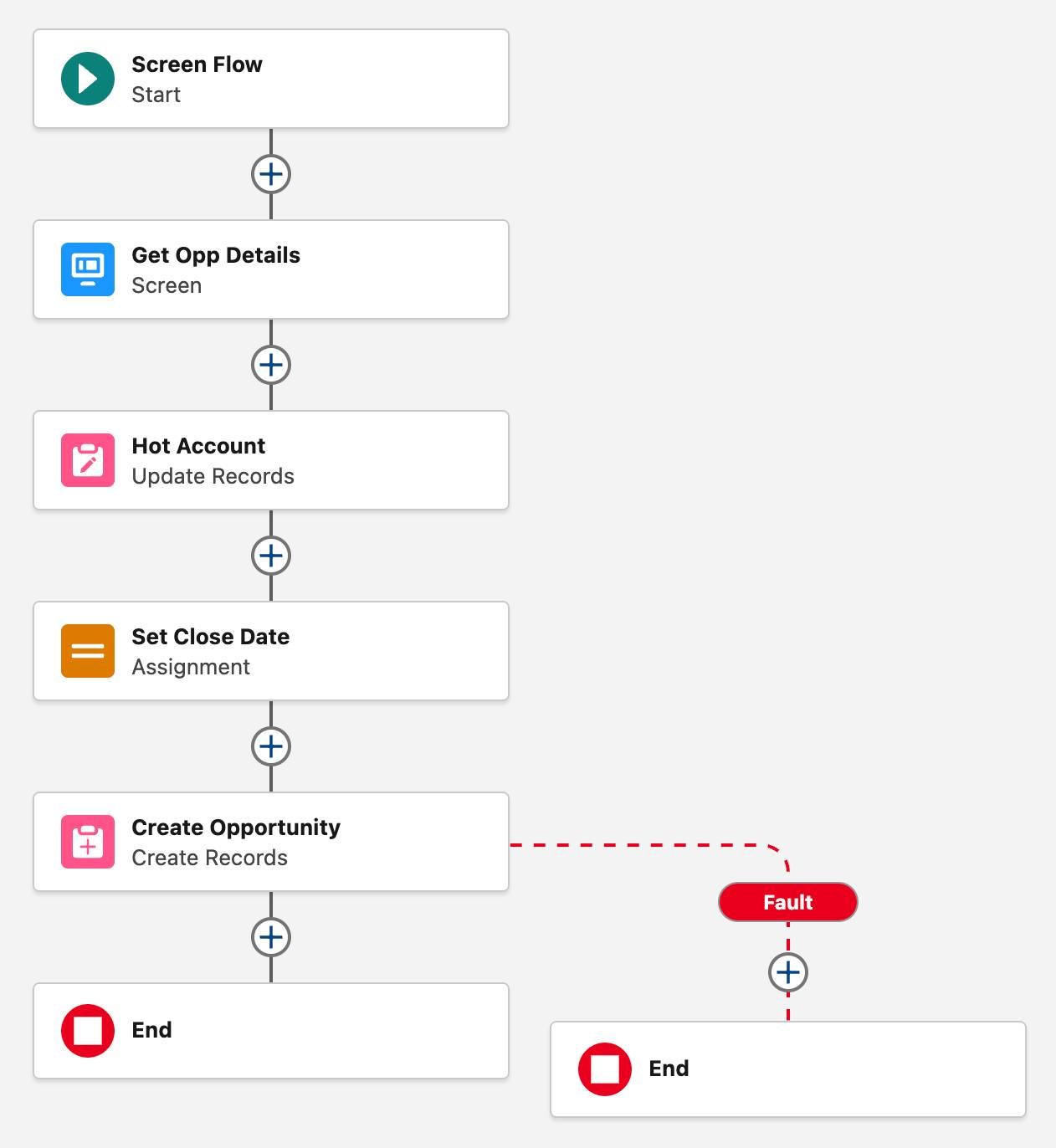
What should go on the fault path depends on the flow type:
| Flow type | What to put on the fault path | Why |
|---|---|---|
| Screen flow | Roll Back Records, then a screen showing the error | The user understands what failed and nothing is half-saved |
| Record-triggered flow | Custom Error element | The triggering change is rolled back and the user sees a clear message |
| Autolaunched or scheduled flow | Notification or log record for the admin | No user is watching, so someone must be told |
In screen flows, the global variable $Flow.FaultMessage holds the detailed error. Trailhead's example displays it on a "fault screen" together with the values the user entered, which immediately revealed a missing Close Date during debugging. To avoid rebuilding the same logic in every flow, Trailhead suggests placing common fault-path elements in a reusable autolaunched subflow.
Tip 2: roll back partial changes in screen flows
A fault path on its own does not undo what earlier elements already saved. If a flow updates an account and then fails to create the opportunity, the account update stays. The Trailhead unit Roll Back Changes After an Error explains that the Roll Back Records element reverses the database changes of the current transaction.
Three rules to remember:
- Roll Back Records is for screen flows only.
- Place it before the error screen, because users often close the window when they see an error, and later elements never run.
- A screen ends the current transaction, so the rollback cannot undo changes saved before an earlier screen.
Tip 3: use Custom Error in record-triggered flows
For record-triggered flows, the Custom Error element is the cleaner answer. Salesforce Help states that it works in before-save and after-save record-triggered flows, as well as flows that run before a record is deleted. When it fires, the triggering change is rolled back and the user sees your message, either in a window on the record page or inline on a specific field.
A few limits from the help page: one record-page message per element, one inline error per field, 255 characters per message, no compound fields, and no asynchronous paths. Messages can be translated with Translation Workbench, which matters for bilingual French and English teams.
Tip 4: send error emails to a team, not to the last editor
In many orgs, flow errors are still emailed to whoever last modified the flow. Salesforce Help explains how to select flow and process error email recipients: in Setup, open Process Automation Settings and set the process and flow error email option either to the user who last modified the flow, or to the Apex Exception Email Recipients. Choosing the second option lets you maintain one list, on the Apex Exception Email page in Setup, that can include a shared admin mailbox.

To make those emails actionable, the Salesforce Admins blog describes a useful element naming convention: prefix each element label with a short code (for example S01 for the first screen, G02 for the second Get Records). When an error email mentions the code, you paste it into the Flow Builder search and land on the failing element in seconds.
What to do now: a 30-minute Flow error handling checklist
Run through this list on your five most-used flows this week:
- Process Automation Settings point error emails to Apex Exception Email Recipients, and that list contains a monitored mailbox.
- Every Get, Create, Update, Delete and Action element has a fault path.
- Screen flows roll back before showing an error screen with
$Flow.FaultMessage. - Record-triggered flows use Custom Error to block invalid changes with a clear message.
- Autolaunched and scheduled flows notify an owner when they fail.
- Element labels follow a naming convention that makes errors easy to trace.
If your org has dozens of flows built over the years by different people, error handling is often the tip of a bigger iceberg. Our article on CRM technical debt explains how to keep automation maintainable, and our recent guide to Salesforce duplicate rules covers the data quality side. When you want an outside view, our CRM audit reviews flows, data and security together, and our Sales Cloud services cover automation design from the start.
Conclusion
Good Flow error handling does not require code or new licences. A fault path, a rollback, a clear custom error and a shared error mailbox turn silent failures into messages people can act on. Start with the flows your sales and service teams use every day, and make error handling part of your definition of done for every new automation.
Sources
- Trailhead, Handle Flow Errors with Fault Paths
- Trailhead, Roll Back Changes After an Error
- Salesforce Help, Custom Error Element
- Salesforce Help, Select Flow and Process Error Email Recipients
- Salesforce Admins blog, Customize Error Emails with a Flow Element Naming Convention