

Open an opportunity in many Salesforce orgs and you scroll through sixty fields to find the five that matter at this stage. Reps skip fields they cannot see, managers ask for "just one more page layout", and admins end up maintaining a dozen layouts and record types that differ by three fields. Salesforce Dynamic Forms fixes most of this. It turns the single block of record details into fields and sections you can place, show and hide from Lightning App Builder. This guide gives four practical tips to upgrade a record page this week without breaking anything.
What Salesforce Dynamic Forms changes on a record page
On a classic Lightning record page, all fields come from one component, Record Detail, which simply displays the assigned page layout. Dynamic Forms breaks that component into individual Field Section and Field components. According to the Salesforce Help Dynamic Forms overview, this lets you:
- place fields and sections anywhere on the page, including in tabs and accordions;
- show or hide fields and sections with visibility rules based on record data, the user or the device;
- assign a single Lightning page instead of a Lightning page plus a page layout;
- use the page's fields in the create, edit and clone windows;
- add fields from related objects by drilling into lookups.
Two practical limits to know before you start. Dynamic Forms is available in most editions, including Professional, Enterprise, Performance, Unlimited and Developer, and it supports most, but not all, standard objects. If you open a record page in Lightning App Builder and see no Fields tab in the component panel, the object is not supported. Objects that are not LWC-enabled, such as Products, Events and Tasks, still rely on page layouts.
Tip 1: Migrate with the wizard, not from scratch
You can build a Dynamic Forms page from an empty canvas, but for an existing page the migration wizard saves hours. The Trailhead unit Get Started with Dynamic Forms describes the procedure:
- In Setup, search for Lightning App Builder in Quick Find and open it, or use Edit Page from the gear menu on a record.
- Click Edit on the record page you want to upgrade.
- Open the Details tab and click inside the record details to select the Record Detail component.
- In the properties pane, click Upgrade Now.
- Step through the wizard, pick the page layout to migrate from, and click Finish.
- Review the result, then click Save.
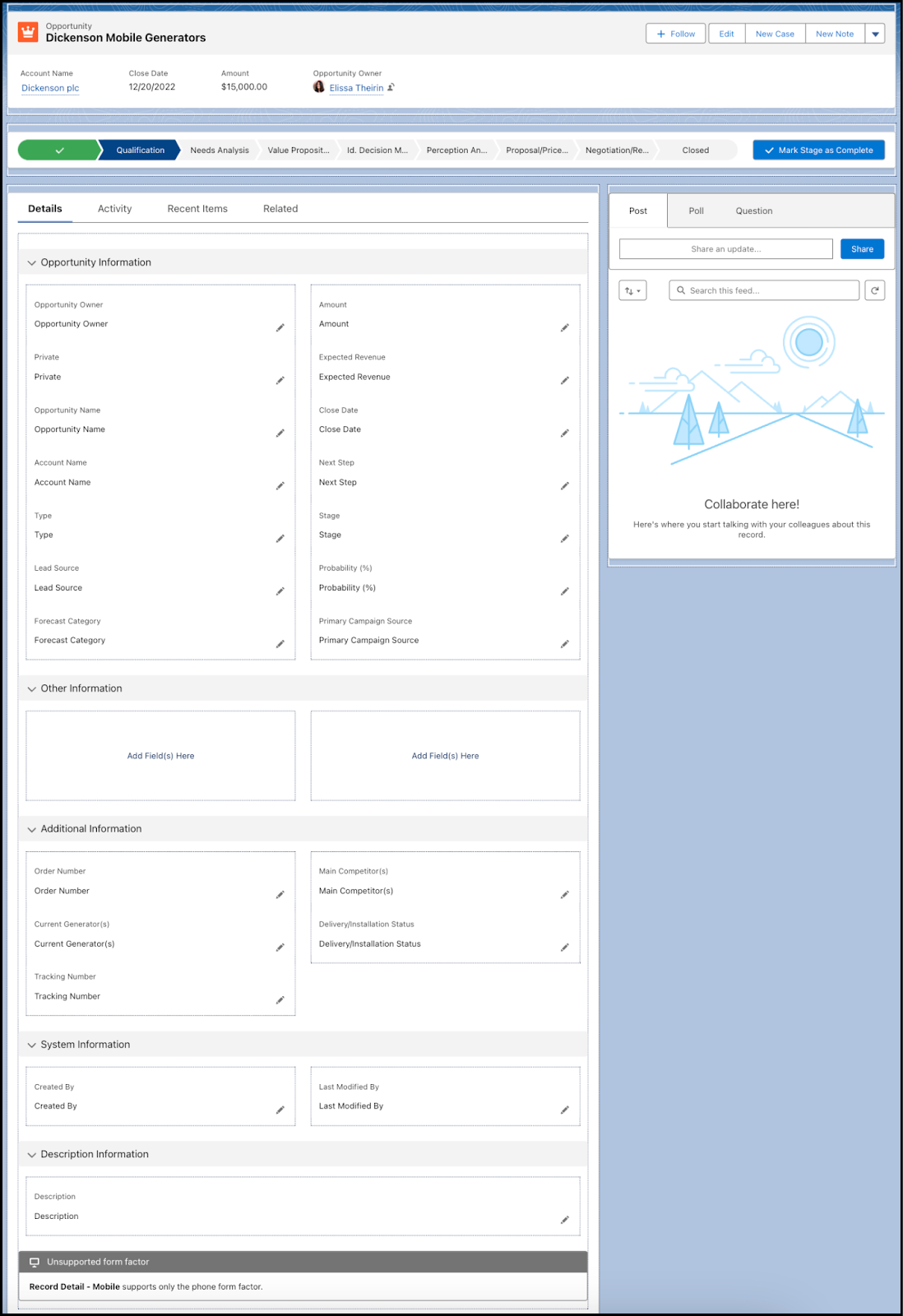
Check two things right after migration. First, the wizard copies only fields, sections and layout save options: custom links and blank spaces are not migrated, as listed in Dynamic Forms Limitations. Second, universally required fields missing from the old layout are not added for you. Trailhead's example is Forecast Category on Opportunity: if it is not on the page, users cannot save. Add any such field before you activate.
Tip 2: Replace extra page layouts with visibility rules
This is where Dynamic Forms pays for itself. Instead of a second layout for closed deals, show a "Delivery" section only when Stage equals Closed Won. Instead of a record type just to display SLA fields, show them only when Active equals Yes.
To add a rule, select a field or a field section, click Add Filter in the properties pane, set the field, operator and value, and click Done. Add more filters if needed, then choose the logic: all filters true, any filter true, or custom logic. The Trailhead unit on visibility rules for dynamic pages walks through examples such as showing a field only when Amount is at least 1,000,000. An eye icon on the canvas marks every component that carries a rule.
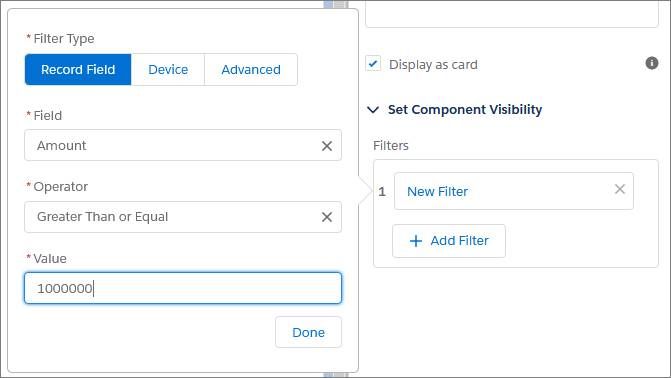
Know how rules behave before you design them:
- Field rules react live while the user edits the record.
- Field section rules are evaluated only after the record is saved.
- Hidden is not secure. Salesforce's Dynamic Forms tips and considerations stresses that hidden fields keep their data, which still appears in reports, list views and dashboards. Use field-level security for confidential data, never a visibility rule.
- Edits to hidden fields are lost. If a value is changed on a field that a rule hides, that change is not saved.
- Dependent picklists do not respect visibility rules.
Visibility rules also pair well with validation rules: show a field when it becomes required at a stage, and let the validation rule enforce it. Our article on practical Salesforce validation rules tips explains how to write those rules so they do not block old records.
Tip 3: Design the page for the job, not for the database
Once fields are free to move, resist the temptation to rebuild the old wall of fields. A few habits that work well:
- Put the five fields reps update most often in the first section, and move reference information into a second tab or an accordion. Trailhead notes that moving lower-priority fields into tabs or accordions also helps page load time.
- Use the Dynamic Highlights Panel for up to 12 key fields at the top of the page.
- Align fields horizontally in multi-column sections. Field sections use a top-down, left-right tab order by default, which surprises users coming from page layouts.
- Make the Name field required on custom objects. If a record is saved without a name, the API fills it with the record ID.
- Never keep the Record Detail component and field sections on the same page. Salesforce warns this can cause overlapping save bars and break visibility rules.

A quick way to decide what goes where: sit for twenty minutes with one rep and one manager and ask which fields they actually read and update, and in which order. That conversation is more useful than any field usage report.
Tip 4: Test on desktop and mobile before you activate
Dynamic Forms now works in the Salesforce mobile app, but not automatically. Help notes that field and field section visibility rules apply on desktop only until you turn on Dynamic Forms (and the Dynamic Highlights Panel) for mobile in Salesforce Mobile App Setup. When activating the page, choose Desktop and phone if mobile users should get the same experience.
Then test with this checklist:
- Create, edit and clone: do the windows show the right fields? Some create actions, such as opportunity creation, Clone with Related on opportunities, child records created from a related list and inline editing in list views, still use page layout details.
- Required fields: can a user save a new record from every entry point?
- Rules: switch the trigger field back and forth and confirm that fields appear and disappear as expected.
- Profiles and apps: log in as a user from each profile that has the page assigned.
- Phone: open the same record in the mobile app.
What to do now: upgrade one page this week

- Pick one high-traffic object, usually Opportunity or Account, and one app.
- List the layouts and record types that exist only to show or hide fields. These are your candidates for visibility rules.
- Clone the current Lightning page in a sandbox, then run the migration wizard on the copy.
- Rebuild the extra layouts as rules, one section at a time, and add any required fields the wizard left out.
- Test with real users using the checklist above, including the phone.
- Activate for the app, record type or profile, deploy, and keep the old page for a quick rollback during the first week.
Before and after, in short:
- Before: several page layouts and record types, fields that do not apply to the current stage, two places to edit every change.
- After: one Lightning page per audience, sections that appear when they become relevant, and all changes made in Lightning App Builder.
If you are cleaning up page layouts, it is also a good moment to remove the duplicate records they were hiding. Our guide to Salesforce duplicate rules covers that side of data quality.
Conclusion
Salesforce Dynamic Forms is one of the simplest ways to make a CRM feel lighter without writing code: migrate with the wizard, replace extra layouts with visibility rules, design pages around how people work, and test on every device before you activate. Start with one object, measure how much faster reps find what they need, then extend the pattern. If your org has accumulated layouts and record types over the years and you want a structured clean-up, our Salesforce Sales Cloud consultants and our Salesforce Service Cloud team can review your record pages and plan the migration with you.