

Most small B2B companies do not start with a CRM. They start with a spreadsheet: one tab for clients, one for quotes, a colour code only the founder understands, and three versions of the file in different inboxes. If you want to migrate from Excel to a CRM without losing history or stopping sales for a week, the hard part is not the software. It is preparing the data and deciding how the team will work the day after the import.
This playbook walks through an Excel to CRM migration with Ostrata, the AI-piloted CRM for SMBs. The company described below is an illustrative scenario, not a customer story: a 12-person French industrial services firm whose sales team tracks around 2,000 contacts, 600 companies and 150 open deals in a shared workbook.
Why spreadsheets break as the team grows
A spreadsheet works while one person owns it. Problems appear when several people edit it at once:
- Duplicates: the same company appears as "Dupont SAS", "DUPONT" and "Dupont Industrie".
- No history: when a deal moves from "Quote sent" to "Won", the previous state and the reason disappear.
- No access control: everyone sees margins and deal values, or nobody does.
- Stale reporting: the Monday pipeline figure is only as fresh as the last person who remembered to update the file.
A CRM fixes these issues only if the data arrives clean and the structure matches how the team sells. That is why the first two steps below happen before anyone uploads a file. If you have already been through a CRM that nobody ended up using, our article on what to do when a CRM is bought but not adopted covers the adoption side in more depth.
Step 1: Design the target structure before touching the file
Ostrata ships with Contacts, Companies and Deals as default objects, and lets you add custom objects and fields in Setup → Objects, including lookups, currency, select lists and attachments, as described on the Ostrata schema page. In our scenario, the firm keeps the three default objects and adds a few fields that only existed as spreadsheet columns:
- On Companies: a "Sector" select list and a "Legacy ID" text field.
- On Deals: custom stages that mirror the real sales cycle (Visit planned, Quote sent, Negotiation, Won, Lost) and a currency field for the quoted amount.
- On Contacts: a "Role" select list (buyer, maintenance manager, finance).
Two details from the Ostrata data import documentation shape this design. Auto-number fields cannot be written during an import, so the old row numbers from Excel go into a plain text field instead. And select values can be matched by label or by internal value, so it pays to agree on the exact list of stages and sectors before cleaning the file.

Step 2: Clean the spreadsheet with an import checklist
Ostrata accepts CSV, .xlsx and .xls files, reads only the first worksheet, and handles up to 10,000 data rows per file with a 10 MB cap. The first row must contain unique column headers. Validation is all or nothing: every row has to pass before anything is written, so partial imports do not happen. That rule is a safety net, but it also means a single malformed date can block the whole job. Use this checklist before you export the file:
- One worksheet per import, with one header row and unique column names.
- One row per contact, with the company name repeated on each row rather than merged cells.
- Dates, amounts, emails, phone numbers and URLs in consistent formats.
- Stage and sector values rewritten to match the select lists you defined in Step 1.
- Obvious duplicates merged by hand, starting with the companies that have open deals.
- Files above 10,000 rows split into several files.
Duplicates deserve extra attention. The same principle we describe for Salesforce duplicate rules applies here: decide which field identifies a record (email for contacts, name for companies) before the import, not after.
Step 3: Run the import wizard, object by object
Imports are reserved for workspace owners and admins, from Setup → Data import. The wizard follows a fixed sequence, which also works as a good order of operations for the migration itself:
- Upload the cleaned CSV or Excel file.
- Choose a preset and the primary object (for example Contacts).
- Map each column to a field. Map the legacy row number to the "Legacy ID" text field.
- Add the related object if needed. Each job supports one embedded related object, so a Contacts import can create or update the linked Companies from columns in the same file, joined through a lookup field.
- Pick the duplicate mode: Create, Skip or Update. Matching relies on email, phone or name depending on the object and the fields you mapped.
- Validate, fix any rows the wizard flags, then run. The job runs in the background and admins get an in-app notification when it completes.
In our scenario, the firm imports Contacts with embedded Companies first, then Deals in a second job, using "Skip" for the first pass and "Update" for a later correction file. The import history stays available for audit, which helps when deciding whether a file needs to be re-run. Teams with an integration in mind can run the same job through the REST API with an admin key, under the same rules and limits.
One point to plan for: a bulk import does not generate AI field values. If you use AI summary or score fields, run a batch afterwards from Setup → AI and Agents.
Step 4: Enrich French companies and rebuild the weekly views
French SMBs have an advantage after the import: official registry data. Once an admin enables the French registry integration in Setup → Integrations (it is off by default), users can enrich company records with SIREN, SIRET, legal form, NAF code, address and officers from INSEE, BODACC and VIES, either by asking Pilot in Operations or with the Enrich button on a company record. The French registry feature page notes that enrichment never runs automatically and that officers imported as contacts never include email or phone. For a migrated file full of half-typed company names, this is a fast way to confirm who is who.
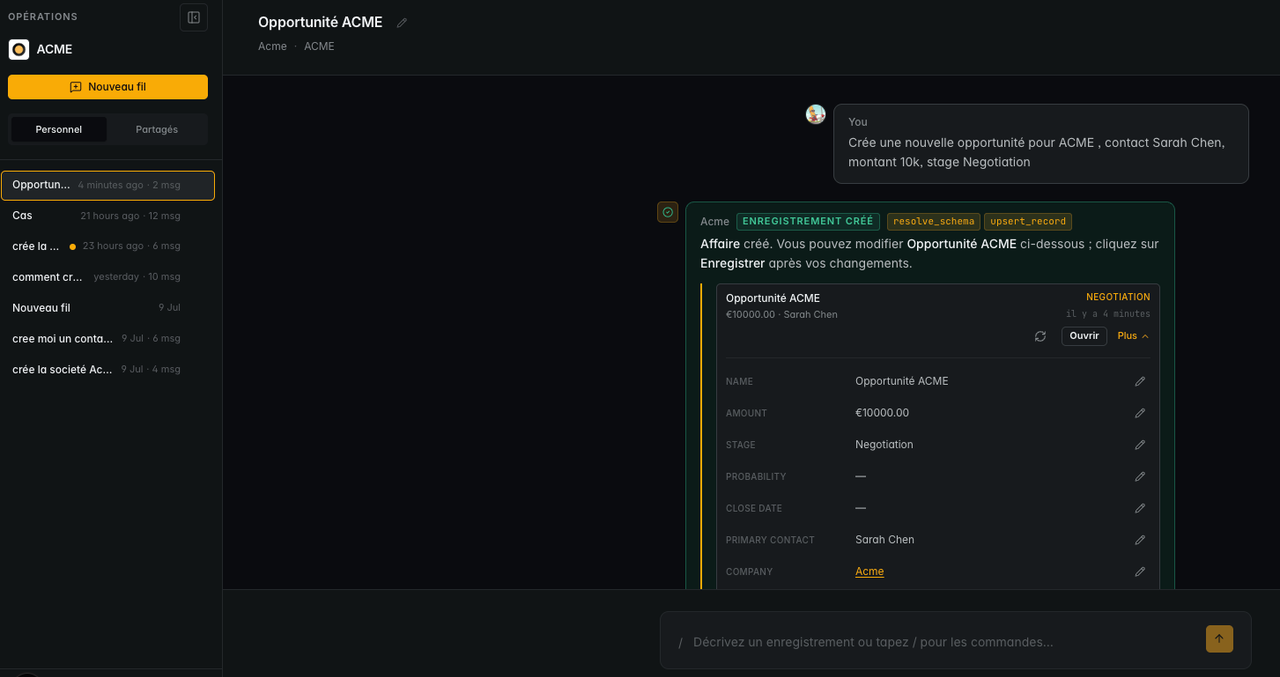
Next, replace the old Monday spreadsheet with Live Views. In Operations, the sales lead types /view or describes what they need, for example "open deals by stage with amount and close month", and Pilot builds a table, board or chart from the live records. Pinned views appear in the Views hub, so the whole team looks at the same pipeline instead of separate copies.
What to do now: migrate from Excel to CRM in two weeks
Here is a realistic sequence for a small team, assuming one person owns the project:
- Days 1–2: list every column in the current workbook and map it to a field, an object, or "drop".
- Days 3–4: create the custom fields, select lists and deal stages in Ostrata, starting from the free trial (30 days for one seat, per the pricing page).
- Days 5–7: clean the file with the checklist above and run a test import on 50 rows.
- Days 8–9: import Contacts with Companies, then Deals; review the import history.
- Day 10: enable the French registry integration and enrich the companies with open deals first.
- Days 11–14: pin the pipeline views, invite the team, and freeze the old spreadsheet in read-only mode.
Before and after the switch, the change for the team looks like this:
- Before: one shared workbook, manual totals, no history, everyone sees every column.
- After: contacts, companies and deals linked in one workspace, pinned views for the pipeline review, permission profiles per role, and updates logged from a conversation.
Keep an exit path from day one. Ostrata's data export produces a ZIP with one CSV per object, on demand or on a schedule, which is useful both for backups and for reassuring finance that the data stays yours. Records are hosted in the EU and operated from Paris, a point many French buyers will ask about.
Moving from Excel to a CRM is a data project first and a software project second. Define the structure, clean the file against a checklist, import object by object, then give the team views that replace the spreadsheet they used to open every Monday. If you want a second pair of eyes on the mapping or the cleaning rules, our CRM migration services and Ostrata implementation support are designed for exactly this kind of move.