

A prospect fills in the contact form on your website on Friday evening. The notification lands in a shared inbox, someone forwards it on Monday, and by Wednesday nobody remembers who was supposed to call back. For small B2B teams, the gap between the website and the CRM is one of the most common places where revenue leaks. Connecting a web form to the CRM closes that gap: every submission becomes a record the sales team can see, assign and follow up.
This web form to CRM playbook shows how to set up website lead capture with Ostrata, the AI-piloted CRM for SMBs. The company used as an example is an illustrative scenario, not a customer story: a ten-person French training provider that receives quote and demo requests from HR and operations managers through its website.
Why website leads get lost between the form and the CRM
In most small companies the form is wired to an email address, not to the CRM. That creates the same problems every time:
- Manual re-entry: someone copies name, company and request into the CRM, or forgets to.
- No owner: a lead sitting in a shared inbox belongs to everyone, so it belongs to no one.
- No traceability: six months later, nobody can say which page or campaign produced a deal.
- No shared view: marketing counts form emails, sales counts deals, and the two numbers never match.
If your team is still moving off spreadsheets, start with our guide to Excel to CRM migration with Ostrata so that inbound leads land in a clean structure.
Step 1: Choose the target object and the fields to capture
According to the Ostrata web forms feature page, each form targets one object type: Contacts, Companies, Deals or a custom object. Every successful submission creates one record of that type with the mapped values. For classic lead capture, Ostrata's own lead capture use case recommends Contacts; a "Request a quote" form can target Deals instead, with a lookup to a Contact if needed.
In our scenario, the training provider runs two forms:
- "Contact us" form: targets Contacts, with first name, last name, work email, company, job title and a free-text message.
- "Request a quote" form: targets Deals, with the training topic, number of participants and preferred dates.
Who is involved in the setup:
- Admins: configure the forms in Setup and make sure the permission profiles allow create access on the target object.
- Sales reps: work the new records in Operations; field-level permissions still apply to what they see.
- Marketing: owns the form copy and the pages where the form is embedded.
Keep the form short and ask only what sales needs for a first call. The use case page itself advises agreeing on field requirements up front to limit incomplete leads.
Step 2: Build, publish and embed the form
The setup takes place in Setup → Web forms. The sequence below follows the steps described in the Ostrata help center:
- Create the form with an internal name, for example "Website – Contact us".
- Select the target object (Contacts in our first form).
- Add inputs and map each one to an object field. Add optional help text where respondents might hesitate, such as "Use your work email".
- Reorder the fields to control the public layout of the embed.
- Publish. Ostrata gives you a hosted link and an embed snippet. No API key is needed for basic lead capture.
- Paste the snippet on your landing pages, pricing page or event sign-up page. Ostrata states that most CMS and static site builders accept the script or iframe embed, including WordPress and Webflow.
- Test a submission and check the form's submissions log, which records what arrived and when.
One compliance point for French B2B teams. The CNIL explains that business prospects must be informed that their address may be used for commercial prospecting and be able to object easily and free of charge, and that the message must relate to their job (CNIL guidance on email prospecting, in French). Add a short notice under the form and a link to your privacy policy. We are not lawyers, so check your wording with your DPO or legal adviser.
Step 3: Work new leads and build an inbound dashboard
Once the form is live, each submission creates the record immediately, and it shows up in search and Live Views. The rep on duty can then qualify it from Operations in plain language, for example by asking Pilot to move a contact to the right stage. Owner is a lookup to a workspace member that Pilot resolves by display name, and reassigning it requires edit permission on that field.
For the weekly routine, the sales lead creates a Live View in Operations, such as "a table of contacts created this week", and pins it for the team. For a more permanent screen, Ostrata dashboards combine chart, view, iframe and rich text widgets. A chart widget can count Contacts by creation date, filtered for example on a lead source field you add, and chart data refreshes from current records every time the dashboard is opened.
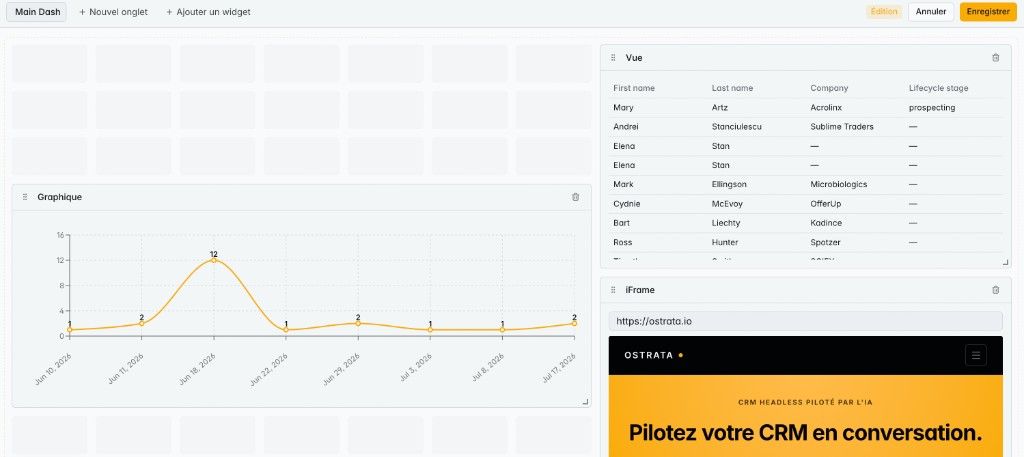
A useful rule of thumb in our scenario: one dashboard tab for inbound volume per week, one for open quote requests by stage. Ostrata allows up to 20 tabs per dashboard and 50 widgets per tab, so there is room to grow before anything needs restructuring.
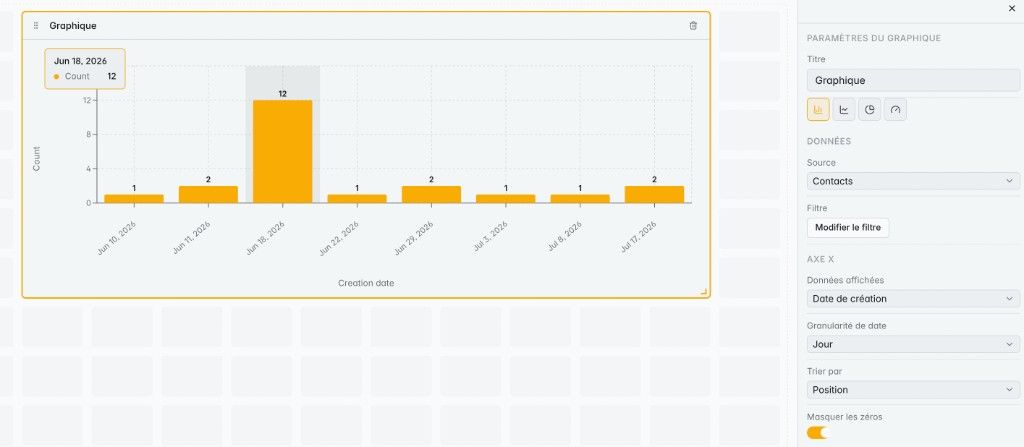
Two gaps to plan for. The Ostrata documentation does not describe automatic duplicate checks, spam filtering or routing rules for web forms. Review the submissions log weekly for test or spam entries, and agree on a simple rule for merging repeat submissions. The principles in our article on Salesforce duplicate rules apply to any CRM: decide on the matching key, usually the work email, before volume grows.
Step 4: Send form leads to your other tools with webhooks
Many teams also need the lead in an emailing or automation tool. Ostrata outbound webhooks send a JSON POST to a subscriber URL when records on selected objects are created, updated or deleted. Authentication can use a header, basic auth or an HMAC signature, and a test payload lets you check the connection without touching live records. Bulk import events are excluded by default, which avoids flooding your automation tool after a migration.
The help center documents an n8n example: create a Webhook node in n8n, add an outbound rule in Setup → Webhooks with the Contacts object and the "created" event, paste the header secret, then send a test and confirm it in the event logs, which are kept for 14 days. The use case page also mentions Zapier through the API as an alternative.
What to do now: a web form to CRM checklist
Before you replace the email-based contact form, run through this list:
- Decide the target object for each form (Contacts for contact requests, Deals for quote requests).
- Limit required fields to what sales needs for a first call.
- Check that permission profiles allow create access on the target object.
- Add a clear prospecting notice and a privacy policy link under the form.
- Publish, embed the snippet, and send a test submission.
- Pin a Live View of this week's inbound leads and agree on who owns it.
- Schedule a weekly review of the submissions log for spam and duplicates.
- Add an outbound webhook only once the CRM side works well.
Before and after, the change for the team is simple:
- Before: form emails in a shared inbox, manual copy into the CRM, no owner, no source.
- After: one record per submission, a pinned view of new leads, an owner assigned in Operations, and a traceable link back to the form that captured each lead.
Connecting your website form to your CRM is a small project with a fast payback in follow-up discipline. If you want help designing the forms, the qualification stages or the automation around them, our Ostrata implementation services cover this setup end to end, and our Salesforce Sales Cloud team handles the equivalent setup on Salesforce.